Managing business displays does not have to involve expensive equipment or complicated software. Google offers an ecosystem of cloud-based tools that makes creating, displaying, and updating digital content easier.
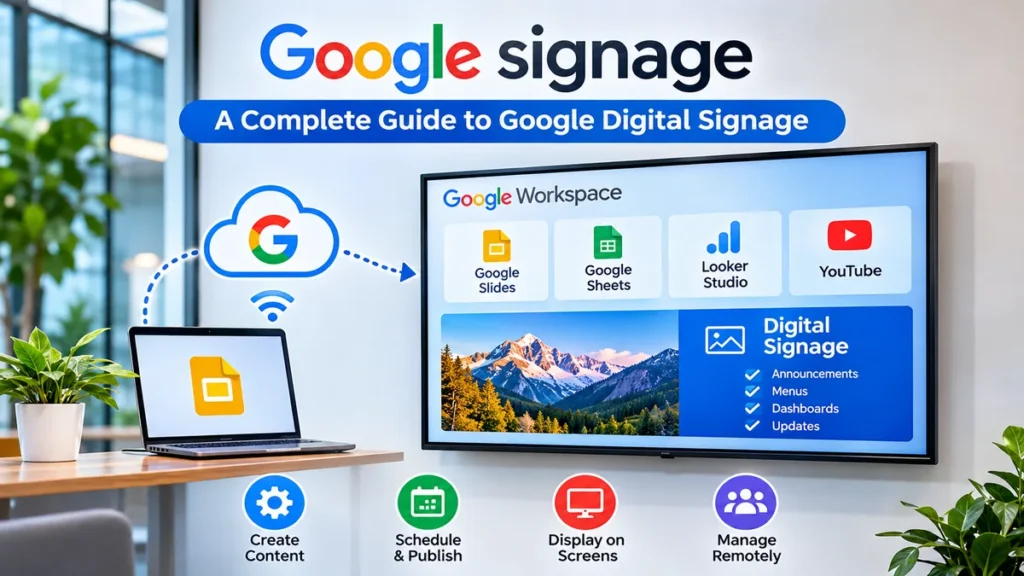
google signage refers to using Google technologies, including ChromeOS, Google Slides, Google Workspace, and cloud-based management tools, to display digital content on electronic screens. Businesses, schools, restaurants, and other organizations can use these technologies to manage announcements, advertisements, presentations, menus, and informational displays remotely.
From a single reception screen to a nationwide network of digital displays, Google’s ecosystem supports different signage requirements.
What Is google signage and How Does It Work?
Google digital signage is an approach to displaying and managing digital content using Google software, compatible hardware, and web-based applications.
Rather than relying on one standalone application, the system combines several technologies that work together to deliver content to connected displays.
A typical digital signage system consists of four components:
- Digital display: A television, monitor, or commercial display.
- Media player: A Chromebox, Chromebook, or compatible computer.
- Content management system (CMS): Software used to create, organize, and distribute content.
- Network connection: Internet connectivity that enables content updates and remote management.
The media player receives content from a cloud-based platform and displays it on the connected screen. Administrators can update the content without physically accessing the device.
Google’s ChromeOS signage ecosystem supports both Google’s digital media player and compatible third-party content management platforms. chromeos.google+1
Does Google Have Its Own Digital Signage Software?
Google provides technologies specifically designed to support digital signage, including ChromeOS kiosk mode, digital media playback, and centralized device management.
However, businesses requiring advanced content scheduling, custom layouts, analytics, and multi-screen management often use a dedicated third-party signage platform.
Google Digital Signage Tools and Technologies
Several Google products contribute to the digital signage ecosystem. Each serves a different purpose, from content creation to hardware administration.
| Google Technology | Primary Function |
|---|---|
| Google Slides | Creating visual presentations |
| ChromeOS | Operating signage devices |
| ChromeOS Flex | Repurposing compatible computers |
| Google Admin Console | Remote device administration |
| Google Sheets | Displaying spreadsheet-based information |
| Google Drive | Storing digital content |
| YouTube | Displaying video content |
| Looker Studio | Presenting reports and dashboards |
| Kiosk Mode | Running dedicated signage applications |
ChromeOS Digital Signage
ChromeOS is a cloud-oriented operating system that supports dedicated digital display applications.
Businesses can configure compatible devices to run signage continuously without requiring employees to manually launch applications every day.
Its management capabilities include remote configuration, controlled software updates, device monitoring, and application deployment.
Google Chrome Sign Builder
Chrome Sign Builder was developed to schedule and display web-based content across managed ChromeOS devices.
It supported restaurant menus, images, presentations, and YouTube playlists.
However, Google is phasing out support for Chrome apps, including Chrome Sign Builder. Organizations planning new installations should consider supported web-based signage applications or Progressive Web Apps (PWAs) instead of depending on legacy Chrome applications. Chrome Enterprise and Education Help+2
ChromeOS Flex
ChromeOS Flex allows organizations to install ChromeOS on compatible existing computers.
This can reduce hardware replacement costs when repurposing older PCs or Macs for digital signage.
Before installation, check Google’s certified hardware list, graphics compatibility, network connectivity, and device support period.
Google Workspace Integration
Google Workspace applications can supply content to digital displays.
For example, a business might use Google Slides for company announcements, Google Sheets for operational figures, and Looker Studio for performance dashboards.
Some third-party signage platforms provide direct integrations with these applications, simplifying content updates.
How to Set Up google signage
Setting up a Google-powered digital display involves selecting suitable hardware, preparing content, and configuring playback.
Step 1: Choose Compatible Hardware
Start by selecting a display and media player appropriate for your environment.
Common hardware options include:
- Lenovo Chromebox Micro
- ASUS Chromebox
- Acer Chromebox
- Chromebooks
- Chromebase devices
- ChromeOS Flex-compatible computers
A basic office announcement screen may require considerably less processing power than a commercial 4K video display.
Check HDMI compatibility, screen resolution, storage capacity, connectivity, and automatic update support before installation.
Step 2: Prepare Your Digital Content
Create content using Google Slides, images, videos, or a dedicated signage platform.
Common display formats include:
| Resolution | Aspect Ratio | Typical Application |
|---|---|---|
| 1280 × 720 | 16:9 | Basic informational displays |
| 1920 × 1080 | 16:9 | Standard business signage |
| 3840 × 2160 | 16:9 | High-resolution commercial displays |
| 1080 × 1920 | 9:16 | Portrait signage |
Use large fonts, clear images, contrasting colors, and short messages. Digital signage should remain readable from the audience’s expected viewing distance.
Step 3: Configure ChromeOS Kiosk Mode
Kiosk mode allows a managed device to run a designated application without exposing the normal desktop interface.
For managed installations:
- Access the Google Admin Console.
- Obtain the appropriate ChromeOS device management license.
- Enroll the signage device.
- Assign it to the appropriate organizational unit.
- Configure a supported kiosk signage application.
- Enable automatic application launch.
- Restart and test the device.
The exact configuration depends on the selected application and device management license.
Step 4: Schedule and Publish Content
A dedicated signage application can organize content into playlists and schedules.
A restaurant, for example, might display breakfast menus in the morning, lunch menus during the afternoon, and dinner menus in the evening.
Other scheduling options may include location-specific announcements, seasonal promotions, and emergency notifications.
Step 5: Test and Monitor the Display
Before completing deployment, verify that the display automatically starts after a reboot, loads the correct content, maintains network connectivity, and recovers appropriately from interruptions.
Testing what happens during an internet outage is particularly valuable for unattended screens.
How to Use Google Slides for Digital Signage
Google Slides offers a straightforward approach for organizations requiring basic digital displays without a complex content management system.
It works particularly well for reception areas, classrooms, small businesses, and internal announcements.
Setting Up a Google Slides Display
Follow these steps to create a repeating presentation:
- Open Google Slides.
- Create a presentation using your preferred screen dimensions.
- Add images, text, announcements, and graphics.
- Open File → Share → Publish to web.
- Choose the automatic slide advancement interval.
- Enable automatic playback and presentation looping.
- Publish the presentation.
- Open the published URL on the signage device.
You can then display the presentation in full-screen mode or through a compatible signage application.
Advantages and Limitations of Google Slides
| Advantages | Limitations |
|---|---|
| Simple content creation | Limited signage-specific scheduling |
| Collaborative editing | Limited playback analytics |
| Low initial software costs | Requires additional device management |
| Cloud-based content updates | Limited offline playback |
| Customizable presentations | Public publishing may expose information |
Never publish confidential employee information, private financial dashboards, or sensitive customer records through publicly accessible presentation links.
For sensitive content, use a signage platform that supports authenticated Google Workspace integrations.
Where Is Google Digital Signage Used?
Google-powered signage can support communication across several industries, from small retail stores to large corporate environments.
Retail Stores
Retailers use digital displays for product information, promotional campaigns, seasonal announcements, store directories, and price updates.
Cloud management allows multiple branches to receive new content without replacing printed signs.
Restaurants and Cafes
Digital menu boards make it easier to manage food prices, menu availability, special offers, and meal-specific schedules.
Displays can also provide allergen information and ordering instructions.
Corporate Offices
Office signage helps organizations communicate company news, meeting schedules, employee announcements, operational metrics, and visitor information.
Connecting reporting tools such as Looker Studio can make business performance information more accessible.
Schools and Universities
Educational institutions use digital signage for class schedules, campus events, examination announcements, room changes, and safety information.
Administrators can manage displays across multiple buildings through centralized tools.
Healthcare Facilities
Hospitals and clinics use electronic displays for appointment guidance, waiting-room information, departmental directions, and general health education.
Access controls are particularly important when handling sensitive healthcare information.
Transportation and Hospitality
Airports, railway stations, hotels, and conference centers can use signage for travel information, event schedules, guest announcements, and wayfinding.
The reliability of the content source becomes especially important when displaying time-sensitive information.
Benefits, Costs, and Limitations of Google Digital Signage
The value of Google-powered digital signage depends on the size of the deployment, required features, and available technical resources.
Key Benefits
- Remote management: Administrators can configure and troubleshoot supported devices from another location.
- Centralized content updates: New information can be distributed without visiting individual screens.
- Flexible hardware: Organizations can use dedicated ChromeOS devices or compatible repurposed computers.
- Security controls: Managed operating system updates, application restrictions, and device policies help reduce security risks.
- Scalability: A suitable platform can support anything from one screen to a distributed display network.
- Google Workspace compatibility: Existing presentations, spreadsheets, and reports can support signage workflows.
Is Google Digital Signage Free?
Google Slides and some Google applications are available without a separate software subscription for basic personal use.
However, a professional signage installation is not necessarily free.
| Component | Estimated Cost (USD) |
|---|---|
| Basic digital display | $150–$400 |
| ChromeOS media player | $150–$700 |
| Google Slides basic access | Free |
| ChromeOS Flex installation | Free on compatible hardware |
| Basic signage CMS | Free–$30 per screen/month |
| Advanced enterprise CMS | Varies by provider |
| Device management licensing | Additional licensing costs may apply |
These figures are illustrative budgeting estimates rather than verified vendor quotations. Commercial-grade screens, installation, maintenance, and enterprise licensing can increase the total cost.
Common Limitations
Google-powered signage also has several potential disadvantages:
- Cloud-based content may depend on internet connectivity.
- Advanced features can require additional software subscriptions.
- Older Chrome applications are being discontinued.
- Not every computer supports ChromeOS Flex.
- Basic presentation tools offer limited content scheduling.
- Improper sharing permissions can expose sensitive information.
Professional deployments should address these limitations before installing large numbers of displays.
Google Digital Signage Software and Alternatives
Organizations that require more control than Google Slides provides can use dedicated signage platforms compatible with ChromeOS or Google Workspace.
Google’s partner ecosystem includes platforms such as Appspace, Arreya, ScreenCloud, Comeen, Navori, Signagelive, signageOS, and StratosMedia. ChromeOS+1
| Platform | Typical Application |
|---|---|
| Google Slides | Basic announcements and presentations |
| ScreenCloud | Workplace and business communications |
| Appspace | Enterprise workplace communication |
| Comeen | Internal communications and Google Workspace integration |
| Signagelive | Distributed digital display networks |
| Arreya | Cloud-based signage content |
| Navori | Advanced enterprise content management |
| signageOS | Multi-device infrastructure management |
| Play Digital Signage | Content creation and scheduled playback |
Features, pricing, offline capabilities, and hardware compatibility vary between providers.
Google Digital Signage vs Traditional Signage
| Feature | Google Digital Signage | Traditional Printed Signage |
|---|---|---|
| Content updates | Remote or automated | Manual replacement |
| Multimedia support | Yes | No |
| Scheduling | Available with compatible software | No |
| Initial equipment cost | Generally higher | Generally lower |
| Electricity requirement | Yes | No |
| Real-time information | Supported with suitable integrations | No |
| Recurring software costs | Possible | Usually none |
Printed signage remains suitable for permanent information, while digital signage is more practical for frequently changing content.
Can Google Chromecast Be Used for Digital Signage?
Compatible casting devices can display presentations and other media on connected televisions.
However, ordinary screen casting may depend on another device, offer limited scheduling, and require manual intervention after interruptions.
For unattended commercial displays, dedicated media players with automatic startup, remote administration, and reliable playback are generally more suitable.
Does Google Digital Signage Work Offline?
Offline functionality depends on the selected signage application.
Some platforms download and cache content locally, allowing previously stored presentations, images, and videos to continue playing during temporary network outages.
Live dashboards, web pages, and real-time information generally require connectivity to remain current.
Before deployment, confirm how the selected application behaves when connectivity is lost.
Conclusion
The google signage ecosystem offers a flexible approach to creating, displaying, and managing digital content. By combining ChromeOS, Google Workspace, compatible media players, and cloud-based signage software, organizations can build display networks suited to their communication needs.
Google Slides can be sufficient for basic announcements and presentations, while dedicated signage platforms provide more advanced scheduling, device monitoring, and content management.
Start by identifying your content requirements, number of screens, security needs, and available budget. Choosing supported hardware and modern web-based applications will help create a more reliable and sustainable digital signage system.