Finding the right image on Google can be frustrating when thousands of irrelevant pictures appear in your search results. A simple keyword search often returns images with unsuitable dimensions, distracting backgrounds, poor resolution, or copyright restrictions.
The advanced search image google feature offers a more precise way to discover visual content without wasting time scrolling through unrelated results.
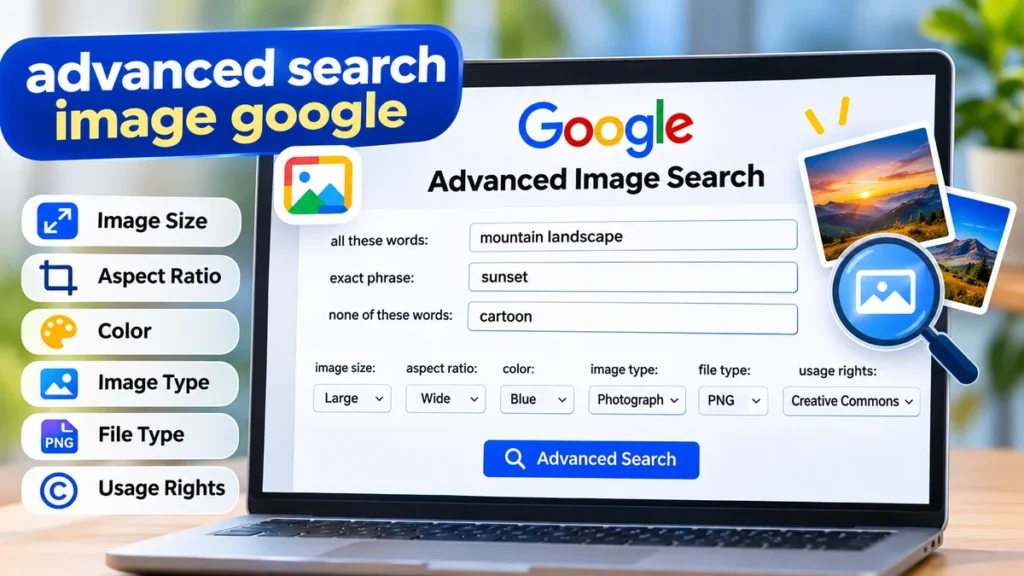
Google Advanced Image Search is a free search tool that allows users to find images using specific keywords, dimensions, aspect ratios, colors, file formats, websites, geographic regions, and usage rights. It helps researchers, students, designers, bloggers, and everyday users discover more relevant images through customizable search filters.
What Is advanced search image google?
Google Advanced Image Search is a specialized version of Google Images that provides greater control over visual search results. Instead of relying entirely on a keyword, users can combine multiple search conditions to narrow their results.
For example, searching for mountain landscapes through regular Google Images may display photographs, illustrations, wallpapers, and paintings. Using advanced search filters allows you to find only large landscape photographs with particular colors or file formats.
Google provides a dedicated Advanced Image Search page that anyone can access for free.
The search tool is particularly useful for:
- Finding high-resolution photographs.
- Locating images with transparent backgrounds.
- Discovering educational illustrations and diagrams.
- Finding images with licensing information.
- Searching for images on specific websites.
- Locating wallpapers and presentation backgrounds.
- Finding pictures in particular file formats.
Unlike traditional image searches, advanced searches help you control both the subject and the technical characteristics of an image.
How to Use advanced search image google on Desktop and Mobile
You can access advanced image search through most modern web browsers without installing additional software.
Using Google Advanced Image Search on a Computer
Follow these steps:
- Open Google Chrome, Firefox, Safari, or Microsoft Edge.
- Visit Google Advanced Image Search.
- Enter your main search keywords.
- Specify any exact phrases or words you want to exclude.
- Select your preferred image dimensions.
- Choose an aspect ratio, color, or image category.
- Specify a file format or website if necessary.
- Select a usage rights filter when looking for reusable content.
- Click Advanced Search.
Google will display images that match your selected conditions as closely as possible.
Using Google Images Search Tools
You can also apply filters directly from regular Google Images.
Visit Google Images, enter your search query, and select the Tools option below the search bar.
Depending on your browser and search query, available filters may include image size, color, image type, publication time, and usage rights. Google Search Help+1
Using Advanced Image Search on Android and iPhone
Open the advanced search page in Chrome, Safari, or another mobile browser. Enter your keywords and apply the available filters.
If certain options are missing, try enabling the desktop website mode in your browser. Mobile search interfaces may display fewer filtering options than their desktop equivalents.
Understanding Google Advanced Image Search Filters
The main advantage of advanced image searching is the ability to combine different filters. Understanding each option makes it easier to find suitable visual content.
| Search Filter | Purpose | Practical Example |
|---|---|---|
| Image size | Filters image dimensions | High-resolution wallpapers |
| Aspect ratio | Filters image shape | Wide presentation backgrounds |
| Color | Restricts dominant colors | Blue-themed photographs |
| Image type | Selects a visual category | Educational line drawings |
| Region | Limits geographic publishing region | UK-based image sources |
| Site or domain | Searches specific websites | Government photographs |
| File type | Filters image formats | PNG graphics |
| Usage rights | Finds licensing information | Reusable blog images |
| Exact phrase | Matches specific wording | Historical landmarks |
| Excluded words | Removes unwanted terms | Animal photos without cartoons |
Image Size and Resolution
The image size filter helps users find pictures with suitable pixel dimensions.
Available options include general size categories and minimum dimensions or megapixel thresholds.
Large images are useful for desktop wallpapers, printed materials, presentations, and professional designs. Smaller images may work better for icons, thumbnails, or lightweight web graphics.
However, a large image is not necessarily a high-quality image. Enlarged or heavily compressed photographs can still appear blurry.
Always inspect the original image before using it.
Aspect Ratio
Aspect ratio describes the relationship between an image’s width and height.
Google offers several shape-based filters, including wide, tall, square, and panoramic images. images.google.com+1
Common aspect ratios include:
| Aspect Ratio | Typical Application |
|---|---|
| 1:1 | Square social media posts |
| 16:9 | Video thumbnails and featured images |
| 4:3 | Traditional presentations |
| 9:16 | Mobile wallpapers and vertical videos |
| 3:2 | Digital photography |
The wide filter is particularly helpful when searching for website banners or landscape-oriented graphics. However, it does not guarantee an exact 16:9 aspect ratio.
Color and Transparent Backgrounds
Google’s color filters help users discover images that match a particular visual theme.
You can search for colorful photographs, grayscale images, transparent graphics, or pictures dominated by a selected color.
The transparent background option is especially useful for logos, icons, decorative elements, and presentation graphics.
Remember that some images display a checkerboard pattern as part of the actual picture rather than containing genuine transparency. Open the original file to confirm that its background is transparent.
Image Type
The image type filter separates different forms of visual content.
Photographs are suitable for realistic imagery, while clip art and line drawings are useful for illustrations, worksheets, and instructional materials. Animated image results can help locate moving graphics, such as GIFs.
Selecting the appropriate image type reduces irrelevant results considerably.
Image File Type
Different image formats serve different purposes.
| File Format | Main Characteristics | Best Use |
|---|---|---|
| JPEG/JPG | Efficient photographic compression | Photographs |
| PNG | Supports transparency and lossless compression | Logos and graphics |
| GIF | Supports simple animation | Animated graphics |
| BMP | Often relatively large files | Bitmap graphics |
| SVG | Scalable vector graphics | Icons and illustrations |
| WebP | Efficient compression with transparency support | Website images |
The formats available as search filters may vary. If your preferred format is not listed, try including its name in your search query.
For website owners, WebP can be particularly useful because it can reduce image file sizes while maintaining acceptable visual quality.
How to Improve Image Searches With Google Search Operators
Search operators are special characters and commands that help refine Google searches. They allow users to create more specific queries without manually selecting every advanced filter.
Search for an Exact Phrase
Quotation marks instruct Google to look for a specific phrase.
Example:
"Golden Gate Bridge" sunset
This helps narrow results to content associated with the Golden Gate Bridge rather than unrelated bridges or sunset photographs.
Exclude Unwanted Results
A minus sign removes results associated with an unwanted word.
Example:
apple fruit -iphone -logo
This query reduces results related to Apple electronics and branding.
Search Within a Specific Website
The site: operator restricts results to a particular website or domain.
Example:
solar system site:nasa.gov
This helps locate space-related images hosted on NASA’s website.
You can also restrict searches to educational and government domains.
human anatomy site:.edu
national parks site:.gov
Search for Alternative Keywords
The uppercase OR operator searches for alternative terms.
Example:
mountains OR hills landscape
This broadens the search to include either subject.
Search for Specific Image Formats
The filetype: operator can help locate files in a particular format.
Example:
flower illustration filetype:png
Search operator results may not always be complete, so combining them with the dedicated image filters can improve accuracy.
Combine Multiple Search Conditions
Search operators become particularly useful when combined.
For example:
"solar system" site:nasa.gov -cartoon
This query focuses on solar system content from NASA while excluding results associated with cartoons.
Quick takeaway: Start with a descriptive keyword, apply one or two essential filters, and add additional restrictions only when necessary. Too many conditions can eliminate useful results.
How to Find Copyright-Free and Reusable Images on Google
One of the most common misconceptions about Google Images is that every picture appearing in search results is free to download and publish.
Google indexes images from websites across the internet. It does not automatically grant permission to reuse them.
The usage rights filter helps users locate images with available licensing information.
Creative Commons Licenses
Creative Commons licenses allow creators to distribute their work under defined conditions.
Different licenses may require attribution, restrict commercial use, or prohibit modifications.
| License | Main Requirement |
|---|---|
| CC0 | Generally permits reuse without attribution |
| CC BY | Requires creator attribution |
| CC BY-SA | Requires attribution and compatible licensing for adaptations |
| CC BY-NC | Restricts use to noncommercial purposes |
| CC BY-ND | Restricts sharing of modified versions |
| CC BY-NC-SA | Noncommercial use with share-alike conditions |
| CC BY-NC-ND | Noncommercial use without sharing adaptations |
Before publishing an image, determine which license applies to it and whether your intended use is permitted.
Commercial and Other Licenses
Google also identifies images associated with licensing arrangements outside Creative Commons.
These may include stock photography, paid licenses, or images available under custom terms established by their creators.
A commercial license does not necessarily mean an image is free to use commercially.
How to Check Image Usage Rights
Search for an image, apply the usage rights filter, and open a suitable result. Look for its licensing details and visit the original publisher’s website.
Google recommends independently checking the accuracy of the license and its reuse conditions before publishing an image. Google Search Help+1
For bloggers running monetized websites, this verification is especially important because noncommercial licensing restrictions may affect whether an image can be used.
Google Advanced Image Search vs. Reverse Image Search
Advanced image search and reverse image search are related technologies, but they solve different problems.
Advanced search starts with keywords and filtering criteria. Reverse image search starts with an existing image.
| Feature | Advanced Image Search | Reverse Image Search |
|---|---|---|
| Search input | Keywords and filters | Existing photograph or image |
| Main purpose | Discover specific images | Identify or investigate an image |
| Search technology | Google Images | Google Lens |
| Find similar images | Yes | Yes |
| Investigate image sources | Limited | More suitable |
| Identify objects | Through descriptive searches | Visual recognition |
| File format filtering | Available | Not its primary purpose |
How to Perform a Reverse Image Search
Google Lens allows users to investigate existing visual content.
Open Google or Google Images, select the camera-shaped search icon, and upload an image or provide its URL.
Google Lens can return visually related pictures, information about recognizable objects, and webpages containing matching or similar images. Google Search Help
This is useful when you encounter an unfamiliar photograph, want to investigate a picture’s source, or need to locate a higher-resolution version.
However, reverse image search cannot always establish the original creator or copyright owner.
When Should You Use Google Lens?
Use Google Lens when you already have a photograph but do not know what it contains or where it originated.
Use advanced image search when you know what you are looking for and need to control the characteristics of the results.
Common Google Advanced Image Search Problems and Solutions
Even carefully configured searches can return unexpected results. Understanding the limitations of image indexing helps resolve common problems.
Advanced Image Search Is Not Showing
If the advanced search option is missing from the Google Images interface, access the dedicated search page directly.
You can also try a different browser, update your existing browser, or switch from mobile to desktop browsing mode.
Search Filters Are Missing
Google’s available search tools can differ depending on device, browser, location, and search type.
The dedicated advanced image search form generally provides more control than the standard results toolbar.
Images Are Still Low Quality
The size filter measures dimensions, not photographic sharpness.
Check the original file resolution and inspect the picture at its full size. Avoid images that contain visible compression artifacts, watermarks, or excessive sharpening.
Too Few Search Results Appear
Combining an exact phrase with a particular color, aspect ratio, domain, region, and licensing requirement can make a search unnecessarily restrictive.
Remove the least important filters individually until suitable results appear.
Google Is Showing Outdated Images
Use the Time filter when available through Google Images Tools.
Keep in mind that an image’s publication or indexing date may differ from the date the photograph was originally taken.
Checking the original webpage can provide better historical context.
Images Contain Unwanted Explicit Content
Google SafeSearch can help reduce exposure to explicit search results.
Users can manage this feature through Google Search settings. Although useful, automated filtering cannot guarantee that every inappropriate image will be excluded.
Downloaded Images Have Different File Formats
Sometimes an image preview appears to have a particular format, but the original website delivers a different file type.
Visit the source webpage, inspect the actual image, and check its file extension and properties after saving it.
Converting an image into another format does not change its copyright status or grant additional usage rights.
Conclusion
The advanced search image google tool makes visual research more efficient by allowing users to control image dimensions, aspect ratios, colors, file types, domains, and licensing information.
Combining these filters with search operators such as site:, quotation marks, and excluded keywords can significantly improve search relevance.
Google Lens complements advanced image searching by helping users investigate existing pictures and discover visually similar content.
Start with a descriptive search phrase, apply the filters that matter most, and inspect the original image before using it. Always verify licensing conditions when incorporating online images into websites, presentations, educational materials, or professional projects.